Showing posts with label iPhone. Show all posts
Sunday, July 8, 2012

Download Google Chrome For iPhone, iPad, iPod Touch

Download Google Chrome for iPhone, iPad, iPod Touch? Yes there is a good news for Google Chrome browser fans because now you can have that magnificent browser to your iPhone, iPad or iPod Touch.

Google Chrome for iOS devices
Because Google has released their official web browser for iOS devices usage. And now you can find it in the App Store, ready to be downloaded and installed for your device.

Google has made the Chrome for iOS device almost similar for desktop in regard for functionality like you can sync bookmarks or tabs between all devices. And it takes iOS 4.3 or newer.
Browse fast with Chrome, now available on your iPhone, iPod touch and iPad. Sign in to sync your personalized Chrome experience from your computer, and bring it with you anywhere you go.
Wan to study more regarding what Chrome for iOS is offering? You can head to App store and read the further descriptions of the app.

Download Google Chrome for iPhone, iPad, iPod Touch -- App Store Link.

Transfer iPhone Or iPod Playlist To iTunes

There is a short trip also an easy way to transfer iPhone or iPod music playlist to iTunes. You are free to follow the steps below for transferring the playlist of your iOS device to iTunes installed on your computer.

How to transfer iPhone or iPod music playlist to iTunes

1. Plug your iOS devices, whether it's iPhone or iPod, to your compute.
2. On Device menu, get the playlist you wish to transfer to your PC and then right-click on its name, continue your step by selecting Export.
Export iPhone Playlist
3. Now you need to name the playlist and choose the XML as the filetype format, then save the file anywhere you think is easy to be found, desktop is the proper one.
XML iPhone Playlist
4. Now go to the File menu, then to Library to select Import Playlist. Choose the XML playlist you previously exported and done!

5. Finish.

Now your iPhone or iPod playlist is stored in iTunes of your computer, you can get it on the Playlist menu. It's recommended for you to have the music featured in the playlist within iTunes for the playlist to work.

Via OSXDaily.

Friday, June 22, 2012

How To Transfer iPhone Data To Samsung Galaxy Device

Samsung released an app namely Easy Phone Sync which is designed to ease our job in transferring data or contents like contacts, messages, videos and photos from iPhone or iPad to Samsung Galaxy devices through iTunes.

Easy Phone Sync can also help you to transfer music, podcasts also iTunes's playlist. All transferring activities can be done painlessly.

What Samsung is doing now to make iPhone or mostly iOS devices owners to at least give Android a chance, and the company helps them by releasing this app to make it easier for any iPhone users to switch to its device.

However, at least currently, Easy Phone Sync only available for UK owners of Galaxy S III only. Seems like right now, Samsung targeting the region.

Easy Phone Sync

Anyway, this app is free to download that you can grab it from the following links.

Transfer Outlook Contacts To iPhone Without iTunes

You can transfer your Microsoft Outlook contacts to iPhone without iTunes, and we are going to elaborate the steps to do so. Just follow each of it and the result your Outlook contacts are transferred to your iPhone.

iPhone Outlook Contacts
Normally we need iTunes to transfer Outlook contacts to iPhone but there is an alternative method that doesn't take iTunes.

Before transferring, your Outlook contacts must be converted into vCards and these vCards that we will transfer to iPhone.

How to transfer Microsoft Outlook contacts to iPhone without iTunes:


Convert all the Outlook Contacts into vCards:

Step 1. Now select all your Outlook contacts, then forward them to yourself as vCards.

Step 2. Now, save all vCards in folders. You can name your folder with whatever name, in this post I use “New Folder” in C drive and save my vCards there.

C:\New folder

Step 3. Now we will need to open Command Prompt, to do so click Start and then type or search cmd.

Step 4. Once you are in the Command Prompt, you need to write the commands below (change the folder and location with yours)

cd c:\Newfolder
copy /a *.vcf c:\allcards.vcf

Step 5. Congratulation! Your Outlook contacts are all converted to vCard file, so they are now able to be transferred to iPhone.

Transfer the Outlook Contact file into iPhone:

Step 1. Now create a new Email and then attach the allcards.vcf you created. Now send the file to the email address of your iPhone.

Step 2. Now open the email sent to your iPhone's email address, then check the attachments and select "allcards.vcf" and then tap on "Add All Contacts".

Step 3. Congratulation. You have managed to transfer all your Outlook contacts to your iPhone without iTunes.

Thursday, June 21, 2012

Backup iOS Device To Computer When Running Out Of iCloud Space

Surely 5 GB free given by Apple on iCloud is not enough, as time goes on, our iPhone's files that are stored there will exceeded the 5 GB storage capacity. In that case we are running out of iCloud storage space and unable to back up with iCloud anymore.

iCloudAnd if you are facing this situation, you can do the following two methods to fix the problem.

First method: Do manually to backup your files. Like deleting certain of apps on iCloud backup. And use your device to do so.

And the second is by making a backup of your iPhone's data to computer for the future usage. And here is how to do it.
  • Connect iOS devices of yours to computer viaUSB Cable.
  • Open iTunes, then scroll down.
  • In the summary tab, check the “Backup to this computer” just below the Backup to iCloud.
  • Backup
  • Once you checked the option, continue your step with click on Apply for it to back up your iOS device to the computer.
  • Look at the iTunes's left side to right-click on your Device and then choose Backup Now.
  • Navigate to this: Settings > iCloud to turn Apps off
The second method is used when your iCloud capacity runs out or unable to access to the internet. Therefore if you have get rid off the two problems, be sure to set the settings back like before which is Back up to iCloud. Or else, your iOS device will continue ask you to back up to local computer instead of iCloud.

Monday, June 4, 2012

iPhone 4s Vs Samsung Galaxy S3 In Durability Testing

This is a drop test to decide which of the super smartphones is more durable after being dropped than other, what I am talking about now which is, between iPhone 4s and Samsung Galaxy S3, strongest in durability test.

You will see a girl with red hair doing a dropping test to those smartphone, she will purposefully dropped both iPhone 4s and Samsung Galaxy S3 multiple times to decide which one is the winner in this drop test competition.

Well the result is surprising, albeit Samsung Galaxy S3 is less cracked yet its touchscreen completely broken, the homescreen and the unlocking don't work at all. As the result Samsung Galaxy S3 is completely broken inside after the test.

While iPhone 4s is still usable and the touchscreen still works, albeit it's cracked on both sides.

iPhone 4s Vs Samsung Galaxy S3 In Durability Testing

Are you curious want to see the video?

The moral of the video is never use your beloved handset with the screen pointed towards the ground. Lol.

Via Android Authority.

Saturday, April 21, 2012

How To Fix iBooks Configuration Error On iOS 5.1 iPhone, iPad

If you are now facing iBooks configuration error on iOS 5.1, the cause of the problem is Apple has put a security measure on iBooks's file system against jailbreak. Therefore this problem only occurs on iPhone, iPad who have been jailbroken and the devices are running on iOS 5.1

So in this post we are trying to fix iBooks configuration error on iOS 5.1 as the result the iBooks will be working as it was before your device being jailbroken. And let's fix it.

How to fix iBooks error on iOS 5.1 iPhone and iPad


iBooks App Error
Step 1. Delete your existing iBooks app!( deleting app can be done with touch the application and hold your finger on it till the app's icon get shaken, then touch the X on the top left corner)

Step 2. Now open App store, download iBooks again

Step 3. Launch iFile (it's a jailbroken app available in Cydia) and head to: /var/mobile/applications/iBooks.

Step 4. Hold your finger on iBooks.app, keep it until you see a short menu appears and then tap on select!

Step 5. Now click Edit, then choose Copy/Link via copy board icon you see from the bottom right hand corner.

Step 6. Now, you need to go to root "/" to choose or tap on applications.

Step 7. Hold your finger down, wait till an option to paste appears. Then paste the folder to this directory.

Step 8. Go inside the new folder: iBooks.app to choose info.plist.

Step 9. Now choose "property list viewer" and continue by selecting "CFBundleIdentifier ".

Step 10. Now it's time to make a little change. Switch "com.apple.iBooks" into "com.apple.iBooksFix".

Step 11. Exit from iFile now, continued with respring your iOS devices.

Step 12. Again your rounded iBooks icon, once you've done than. Then respring your device again.

Step 13. Congratulation! You have fixed the iBooks Configuration Error on iOS 5.1. The app should be working fine now!

Monday, April 16, 2012

Fix Error 1611: iPhone Could Not Be Restored Unknown Error Has Occurred

Do you meet Error 1611 when trying to restore your iPhone 3GS, iPhone 4, iPod Touch 3G / 4G or iPad? Then here is the fix. Error 1611 appears followed with error message like this: "The iPhone "your device name" could not be restored. An unknown error has occurred (error 1611)". Just like in the following picture.

Error 1611 iTunes

Fix Error 1611


Use one of the ways, try one first if it fails, then follow the second way.

1. Reboot your computer, then change the port of your USB.

2. Or, follow the instructions from the following video.


Hope one of the ways above fix Error 1611 you are currently experiencing while restoring your iOS device.

Saturday, April 7, 2012

How To Fix Facetime And iMessage Waiting For Activation Problem On iPhone

If you are here because to find a how to guide to fix Facetime and iMessage problem, because they are stuck on Waiting for Activation. Then you are in the right place. In case you have a jailbroke iPhone (3GS baseband 6.15.00, 4 baseband 4.10.1) running on iOS 5 or 5.0.1 you will likely experience the Facetime and iMessage doesn't activate.

So to fix the said problem, you can follow the guide in this post. Firstly, download the latest iTunes 10.6.1 or newer version, and use Wifi or data as your internet connection.

How to fix Facetime and iMessage doesn't activate (Waiting for Activation) on iPhone.


Step 1. Now turn your off Facetime and iMessage if they are on.

Step 2. Open Cydia and then add the following url repo source. Do so by navigate to Manage >> Sources >>> Edit >> Add.

http://repo.binger.com

Repo Bingnger Cydia

Step 3. After you added the url, now search and then install Cydia for SAM.

Step 4. After SAM is succesffully installed, now open SAMPrefs on your iPhone's Homescreen and then head to Utilities.

Step 5. Click on the Revert Lockdown to stock. You will get a message saying it's successful. And then click on De-Activate iPhone (clear push). You will get a success message appears for second times. Simply click on OK then to close it.

Step 6. Plug your iPhone to computer, and then launch iTunes. Don't worry if the error message appears, it means everything is fine. And then sync your device, do so by right-click on your device on the left window pane and then choose Sync.

Step 7. After the sync process completed, launch SAMPrefs on your iPhone and then click on More Information. If you get WildcardActivated, means you are on the right road, and you can continue to the next steps.

Step 8. Back to SAMprefs and go to Utilities. Click on Backup Activation on Restore Activation option. Then you'll find your iPhone respiring afterward.

Step 9. Reboot the device of yours, and then sync it with iTunes again. Once the sync completed. Open the Appstore and then search for iPusher and install it.

Step 10. After iPushes is installed successfully. Again, reboot your device. For the last time, sync your device to iTunes again. Afterward open iPusher. Then click on Test Push Notifications field, and after sometime, you will be notified with this message: Yay, push notifications work fine!

Step 11. Done. Now turn your FaceTime and iMessage ON. Do so by navigate to Settings > iMessage or Facetime to ON. Now they are fully activated. If otherwise, I mean you fail to activate them, then reboot your device once again and then try to turn them ON once more. This will work.

Congratulation now you have fixed FaceTime and iMessage Waiting for Activation problem on iPhone 3G or iPhone 4.

Transfer Or Import iPhone Apps to Computer Without iTunes

Transfer or import iPhone apps to Computer. This post is explaining the steps you can follow to transfer or export the Apps from iPhone, iPod touch or iPad to computer (Windows or Mac) without iTunes intervention. Yes you can transfer your desired apps to both PC or Mac without the help of iTunes.

There is an app that you can use for that purpose and the app is free to download. The app name is iFunbox which you can use to browse within iOS device's stomach to find or search the apps inside it to be transferred or imported to computer.

iFunBox

Once you have download iFunBox for Mac or Windows, you can browse to the User Applications to shows all the installed applications listed in your device. Then select the apps you wish to transfer, after the apps are selected then right-click your mouse to choose Backup to .ipa package.

Backup To iPad Package iPhone

And you will be asked to choose place to save the ipa file, then choose the place you think is proper. Once you have placed the iPa app files then you can continue to transfer or install iPa files to iPhone, iPad, iPod touch without iTunes.

Oke that's how to transfer or import applications iPhone, iPod touch iPad to computer (Windows or Mac).

Friday, April 6, 2012

Fix End Call, Can Not Call On iPhone 4s, iPhone 4

Fix End Call on iPhone. If your iPhone 4 or iPhone 4s is experiencing the can not call or can not hang up, and your iPhone screen displays End Call. Then don't worry many experience this condition too and there is a fix for that problem.

This End Call caused by unable to call or unable to hang up is a general situation to the iPhone 4 or 4s who just being jailbroken running on iOS 5.0.1

Once you make a call, the one you call can receive your call, however if he/she answers, then both of you are unable to hear each other voices.

And then End the call, your screen will display End Call click the Home button but the situation is the unchanged, so you are forced to quit by double-clicking the home button. If you think rebooting your iPhone will resolve the problem, then you are wrong, it still exist.

Fix End Call

So this is what you need to do to fix End Call, can not call or can not hang up:

Navigate to Settings >>> General >>> Restore >>> Restore all the settings.

And see you again in another posts.

Monday, March 26, 2012

Enable Automatic Downloads For iTunes Store On iPhone, iPad, iPod Touches

In the previous I posted about how to enable iTunes automatic download on computer, and now I want to continue the post with enable automatic download on iPhone, iPad and iPod touch. Once you finished applying this tips you are able to download automatically purchases you bought from iBookstore, iTunes and App store instantly to your iOS devices.

Instructions.

  • Now press Settings > Store from your devic.
  • Now press Sign In -- skip this if you are already signed in to the iTunes Store.
  • Now enter your App Username, Apple ID and password.
  • Press On/Off switch to enable Automatic Download for items of your choice, like Music, iBooks or Apps.

Automatic Download iPhone

Note.

  • If you don't find iBooks as option in Automatic Downloads area, then you need to download iBooks and install it from the App Store.
  • You can also enable / disable Automatic Downloads on cellular network like Wi-Fi, 3G. Simply tap On / Off next to Cellular in Settings > Store. Cellular downloads are limited to a file size of 20 MB or smaller.

Hope this post helps you and see you again in another posts.

Friday, March 23, 2012

iPhone 5 Will Feature 4.6 Inch Screen (Rumor)

Here is another iPhone 5 rumor, after we have done with the iPad 3 rumors who were over after Apple stopped the rumors with the release of the New iPad this month. Back to the iPhone 5 rumor, according a South Korean newspaper and quoted by Reuters that the upcoming iPhone generation will be featuring a 4.6-inch display.

It is bigger screen size compared of what the previous rumors we've heard that iPhone 5 or whatever the name will be is going to have a 4-inch screen, similar size like Samsung Galaxy S II.

If taking the South Korean Newspaper's leak into account than the iPhone 5 screen size will be almost reach the size of Samsung Galaxy Nexus who is featuring 4.65-inch screen.

iPhone 5 Rumor
Of course this big screen size is expected as long as it's match with the overall design. Anyway here is what Reuters says:

Apple has decided on the bigger 4.6-inch display for its next iPhone and started placing orders to its suppliers, the Maeil Business Newspaper said, quoting an unnamed industry source.

So which you prefer more -- a 4.6-inch screen or instead 4-inch display?

Wednesday, March 21, 2012

How To Speed Up iPhone, iPad Wifi Connection With DNS Servers

Speed up Wifi Connection for iPhone, iPad, iPod touch with custom DNS. Having slow internet speed is something that I and you too avoid most, as we want to get where we wish as fastest as possible without delay or slow loading pages.

This situation is our most wanted, whether we are using PC or browsing with our mobile devices, iPhone, iPad or iPod touch. And whether we are using Wi-fi or non-wifi network connections. We want fastness, no fussiness.

Therefore, in this post I would like to share a tips to speed up your slow Wi-Fi connection on iPhone, iPad or iPod touch.

The general culprit which causing this issue is related to wireless network changing. And to get out from this inconvenient slow Wifi connection to use custom DNS servers which are near to your domicile.

But you can also use the -- I think -- universal DNS serves that are proven reliable and Wifi connection boosters -- Google DNS Servers and OPen DNS Servers -- these are two DNS servers offered by me as solution and by many people.

You can try all of them to see which one that gives you speed most for iPhone and iPad Wifi connection. And this works for device older than A5, but it also said can work too for A5 devices. So have a try.

Here are the DNS servers.
  • Google DNS servers: 8.8.8.8 and 8.8.4.4
  • OpenDNS servers: 208.67.222.222 and 208.67.220.220
Here is how to add the DNS servers.
  • Go to Settings and then tap on WiFi.
  • Choose the network you like to place the custom DNS servers.
  • Click on the Numbers in DNS and type the custom DNS server.

Fix iPhone 3GS Restarting Itself Every 2 Minutes After iOS 5.0.1 Update

Is your iPhone 3GS restarting itself every 2 minute after iOS 5.0.1 update? If that's so there is a short and fast solution to the said problem.

You can fix the every 2 minute restart problem after you decided to update your iPhone 3GS firmware to iOS 5.0.1 version. And simply follow the following steps and you don't need to throw your device into garbage can.

Fix iPhone 3GS Restarting Itself Every 2 Minutes After iOS 5.0.1 Update


  • 1. Remove the SIM card from your device.
  • 2. Navigate to Settings > General > Network, then enable 3G and Cellular Data (or toggle these if they are already enabled)
  • 3. Insert the SIM card to your device again.

Done!

If it does not fix the problem, you can try another solution which is do a full restore and set it up to be a new iPhone. But do not forget to use custom firmware in order to maintain the baseband if you are relying on unlock.

Tuesday, February 14, 2012

Activate Siri On iPhone 4 How To

So you have installed Siri on iPhone using SiriPort, but now you are unable to activate the Siri to your jailbroken iPhone 4 therefore you can not use the voice assistant application.

For your information, once you have successfully completed the SiriPort certificate installation also have Siri resources (Siriport.ru) installed on your device, you should be able to use Siri. But firstly you need to activate it.

And in this post I would like to elaborate the steps to activate Siri on iPhone 4, so you will be able to use it, and your efforts to install it will not go futile.

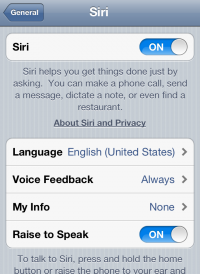
1. Activate Siri by navigating to Settings >>> General >>> Siri set to: On.

SIRI

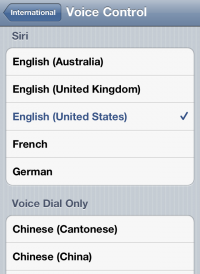
2. Go to Settings >>> General >>> International >>> Voice Control. There are two sections: Voice Dial Only and Siri, then select Siri and set the language of yours.

Siri Select Language

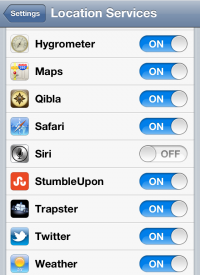
3. And then activate the location service. Then go to Settings >>> Location Services >>> Siri set to On.

Siri Location Services


Hope you find this post helpful! And see you again in another post. !

Friday, January 20, 2012

Fix Camera Roll Empty Error Establishing Database Connection After Untethered JB With Absinthe

Have you download untethered jb Absinthe to untethered jailbreak A5 devices(iPhone 4s, iPad 2)? If you have, and you are currently experiencing with bugs -- like camera roll empty, or error establishing a database connection -- found like others users who have jailbreak their A5 with Absinthe. Then this post will help.
Oke here are the workaround to fix Camera empty and error establishing database connection after untethered jb with Absinthe:

First bug: If the jailbreak is not complete, camera roll is empty. Rerun the Absinthe app once to fix, and then another time to complete jb.

Second bug: Or you find another bug which is server is down and getting an error message: establishing a database connection:
  • Firstly turn off your iPhone 4s, iPad 2 passcode, before running Absinthe. 
  • Then you need to press the Settings icon on homescreen and set the VPN to ON (but before turn it to ON, remove any existing VPN configuration except "Jailbreak) and you will receive error, just wait and your device will take an automatic reboot (press power and home together to force reboot if it doesn't reboot automatically. 
  • After your A5 rebooted, run Absinthe app again, if still doesn't work, then reboot it again. That should work.
Having trouble with Abisnthe white screen page?

Hope this workaround helps you.

Wednesday, January 18, 2012

Unlock iPhone With Your Face Video

Use your face to unlock your iPhone like Android users who use to do with their devices. But in iPhone this feature is still under development and no exact ETA revealed.

Anyway it is an iPhone Romanian developer from WebCode that demoed it for the firs time and posted a Youtube video for all to see. So you want to see it? Do so then.


This is just an app, once it's fully developed and released I hope it will not add another problem toward iPhone battery life.

Anyway good Romanian!

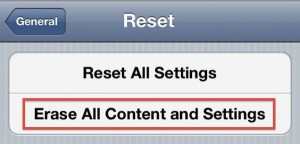
How To Reset iPhone To Factory Settings

Do you know how to restore or reset your iPhone to factory settings? This post is trying to elaborate the steps to reset iPhone to its factory settings directly from your iPhone without iTunes. And after applying the guide your iPhone will look a brand new one inside or take your iPhone back to condition you bought it for first the time.

Aside of the aforementioned result you will gain, making your iPhone back to its factory settings is useful if something goes wrong and you can start it over.

But remember, restoring to its factory settins will wipe your device clean. All data stored within your iPhone will be gone, like photos, music, etc. Therefore before doing anything in this post firstly backup your data first. And you can get those data back, once you have done restoring.

So let's get started, to restore your iPhone to factory settings, you need to these steps.

1. Activate your iPhone, then tap Settings, followed with tapping on "General".
2. And press "Reset" button at the very bottom part of General's screen.
3. Then tap on "Erase All Content and Settings".

Reset iPhone To Factory Settings

4. Enter your iPhone passcode here, then tap on "Erase iPhone" to confirm the reset.

5. Done!

Now in your hand there is a "brand new" iPhone :D.

Siri Running On iPod Touch 4G

Since Siri was widely known along with the release of iPhone 4s last year, people eagerly wanted to have this voice assistant installed to their device -- no matter what types, whether they are iOS or Android based devices and versions -- people want to have chat with this sexy female voice (albeit Siri can also make you bankrupt) and ask her various things they like to know.

Then hackers come and ago try their best to design Siri-like application to run on all devices. Their works are great, yet they are not Siri. We also have seen various of attempts to port Siri to non-iPhone 4s, yet they don't seem to work as expected.

Until Spire came to appear, this one is really a Siri brought for older versions of A5 machine, however to get its fully working we need proxy server.

Suddenly there is a dude (@AppleGordon) who have done the job, he managed to bring Siri to his iPod touch 4G. He bought the device and restoring it from an iCloud backup of an iPhone 4S...then once the restoration was completed. Siri was there, appeared on his iPod touch, this was a magic (?).

Siri On iPod Touch 4G

Of course there are buggy all over the place and his iPod touch often crash on daily use, this due to his device was not able to make an authentication with Apple's sever, since the voice dictation is not supposed to be running on iPod touch, but hey according to Gordon Siri Dictation works without issue.

Want to see Gordon video with Siri run on his iPod touch?


It is also said that Gordon made further attempt to his CDMA Verizon iPhone 4 using the same method and he was successful. Anyway both of iPod touch and iPhone 4 are jailbroken.

Is Gording finding can be used for further Siri porting to non-authorized device research by hacker? Perhaps hacker out there can start to delve this unexpected porting incident.

Via: Michael Steeber.